STARTING AUGUST 1, 2025 DOWNTOWN WORKS HAS TRANSITIONED TO EZEEP BLUE.
Downtown Works has partnered with ezeep to streamline your printing experience. Setting up is quick and straightforward, and best of all, you won't need to install any drivers. Follow these steps to get started:
Before You Begin
Ensure your membership at Downtown Works is active, as this is required to access printing privileges. If you have previously used ezeep with another organization, you might need to have your email address released. Contact ezeep at service@ezeep.com for assistance.
Step 1: Download the ezeep App
Download and install the ezeep app suitable for your device:
-
- Windows Users (PC)
- MacOS (Desktop or Laptops)
- Chrome OS (Desktops or Laptops_
- Apple iOS (Phones or Tablets)
- Android (Phones or Tablets)
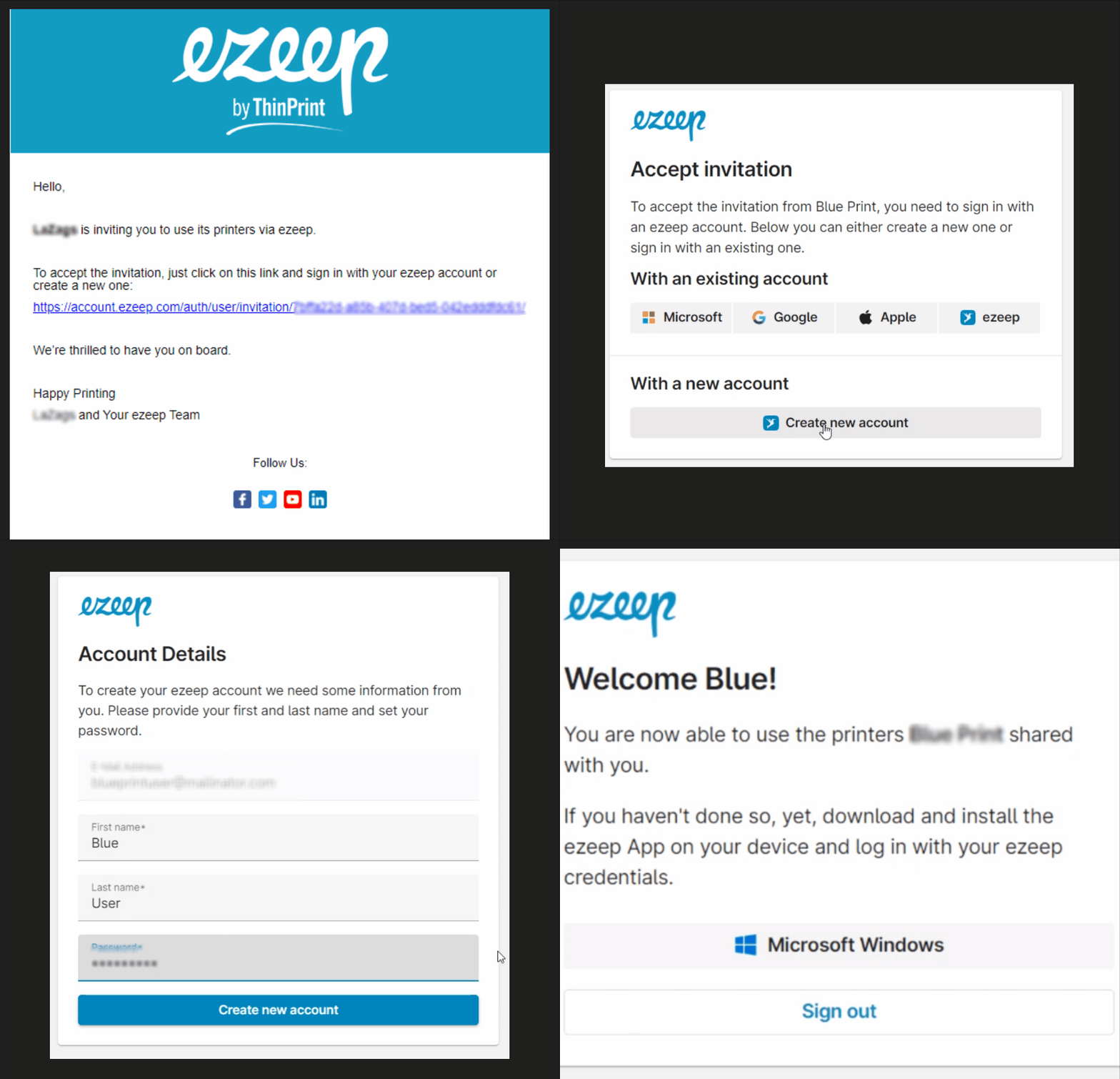
Step 2: Activate Your Account
- Check your email for an invitation from ezeep. The email will include a link to set your password. It will come from helpdesk@ezeep.com.
- Follow the link, set your password, and log in to your ezeep account.
- Click on "create a new account" and follow the prompts
Step 3: Log In and Print
- Open the ezeep app on your device.
- Log in with the credentials you just created. Note: Your Downtown Works portal and ezeep passwords will not be the same unless you intentionally set them identically.
- If using the Secured Print option, you’ll find a specific code at the printer location necessary to release your documents.
Need Help?
If you encounter any issues during setup or need further assistance, please don’t hesitate to contact your Community Manager or submit a support ticket. We’re here to ensure your printing setup is successful and hassle-free.
Note: If you have inadvertently created a new ezeep Blue account as an administrator instead of accepting the invitation from your organization, please send an email to helpdesk@ezeep.com. Ezeep customer support team will assist you in removing the organization created in error.
Comments
0 comments
Please sign in to leave a comment.